Everything explained here applies not only to DocBook, but also to all the other document types (XHTML, DITA, your custom schema, etc) supported by XMLmind XML Editor.
Use → , select DocBook v5+|Chapter, then click .
The text you see, Chapter 1, 1, etc, is automatically generated and cannot be modified. The square patterns you see are text placeholders.
Type the title of your chapter in the first placeholder. Click on (or tab to) second placeholder and type the title of the first section. Do the same for the first paragraph of the first section.
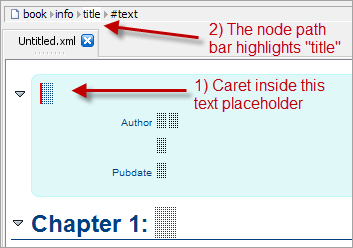
How do you know where you are? Answer: always keep an eye at the node path bar.
The node path bar shown above indicates that the caret[1] is located inside a text node contained in a para element, itself contained in a section element, itself contained in a chapter element.
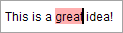
Select some text by dragging the mouse over it, as you would do it in any text editor.
You can now convert this text to an emphasis element. For that, select the item from the menu of the toolbar button shown below.
You'll not find all the elements you want in this menu. For example, you'll not find citetitle or uri. In the general case, you'll have to use the
→ (Ctrl+T)[2] command to convert the selection. More on this command later.
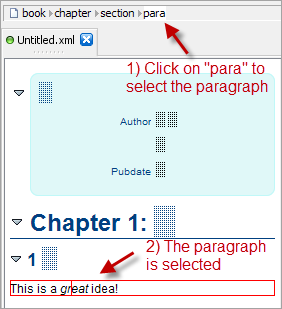
Let's suppose you want to add a programlisting element after the para element. Click anywhere inside the para element, except inside its emphasis child element. Even if you don't see anything special about it, this para is now implicitly selected. This means that all the commands you may invoke will use this para as their subject.
Use
→ (Ctrl+J). Doing this activate the
Edit tool. Type the first few letters of the name of the element you want to insert, then press Enter.
A programlisting element has been inserted after the para element. The caret is inside it. You can type some text in it right away.
Note that you have used command and not command .
Table 1.
Edit tool commands
| Command | Shortcut[2] | Description |
|---|---|---|
| Ctrl+R (R like Replace) | Replace the node selection by a newly created element. Example: you want to replace the |
| Ctrl+H (I like Insert; H is before I) | Insert a newly created element before the node selection. |
| Ctrl+I (I like Insert) | Insert a newly created element at caret position. |
| Ctrl+J (I like Insert; J is after I) | Insert a newly created element after the node selection. |
| Ctrl+T (T like Transform) | If a single element is selected, convert this element to another element which has a compatible content. Example: convert an If multiple nodes are selected, wrap a newly created parent element around this nodes. Example: wrap a |
| Ctrl+Shift+T | A variant of command . Always wraps a newly created parent element around the selected nodes. Example: a single |
Let's suppose that you want now to insert a second section after the first one. If the programlisting is implicitly selected, using , you'll be able to insert a subsection after it, but this is not what you want to do. If you click inside the para to implicitly select it and use , the Edit tool will not suggest section at all.
You need to explicitly select the first section in order to be able to insert a second section after it. There are many ways to do that.
Repeatedly press Ctrl+↑, while keeping an eye on the node path bar, until you select the desired ancestor element. (Press Ctrl+↓ if you have gone too far.)
Repeatedly click inside an element while holding the Ctrl key down, without moving the mouse, until you select the desired ancestor element.
Directly click on the label of the desired element in the node path bar.
Click on the content generated for the element you want to select: the section number in the case of the title of a section, the bullet in the case of a listitem, etc.
Note that unlike the implicitly selected element, explicitly selected nodes have a red box drawn around them.
A number of commands, , , , , , etc, can be applied to multiple sibling[3] nodes.
The node selection can be extended to preceding sibling using
→ (Esc ←) and to following sibling using
→ (Esc →). All the child nodes of an element can be selected using → (Esc ↓) .
Alternatively, you can extend the node selection using the mouse by clicking elsewhere (in the direction you want to extend the selection) while holding down the Ctrl and Shift keys.
We have already seen that the DocBook toolbar contains a number of buttons which invoke the command. Most the other buttons (, , , etc) invoke the add command.
The add command is very different from the three commands. The add command will find out, where after the caret position, a given element may be inserted. If an insertion position is found, the add command will then insert this given element.
For example, let's suppose that you want to insert an itemizedlist after the first para of the first section. Click anywhere inside the para, really anywhere, including inside any of its descendant elements (like its emphasis child element), and press the button of the DocBook toolbar.
The
→ (Ctrl+C),
→ (Ctrl+X),
→ (Ctrl+V),
→ (Backspace, Del or Ctrl+K) commands work as expected for both the node and the text selection.
Note that in addition to the command (which replaces the explicit selection by the contents of the clipboard or which inserts the contents of the clipboard at caret position when there is no explicit selection), you also have
→ (Ctrl+U) and
→ (Ctrl+W) commands.
Also notice that the current content of the clipboard is displayed at the bottom/left of the main window.
Pressing Ctrl+Enter anywhere inside a list item (whatever its element type) or a paragraph allows to quickly add the same element after it.
Pressing Enter anywhere inside a paragraph splits this paragraph in two parts at caret position. This is the most common form of command
→ (Esc Enter).
Pressing Backspace at the beginning of a paragraph preceded by an element of the same type, merges the two elements. Same behavior if you press Del at the end of paragraph followed by an element of the same type. These are the most common forms of command
→ (Esc Backspace).
Pressing Ins allows to quickly add a text node. This is mainly useful in the following situation: you are typing some text in a para. You insert a literal at caret position and continue typing some text inside the newly inserted literal.
Now you want to resume typing text inside the para. You press Ins to quickly add a text node after the literal and then type text in the newly inserted text node.
Press Ctrl+SPACE to insert a non-breaking space at caret position.
Implicitly or explicitly select an element and use the
Attributes tool to add or modify one or more of its attributes. For example, select the chapter root element, click in the cell containing the value of its status attribute (found in Value, the right column of the attribute table), type draft and then press Enter.
However, in most case, you'll want to use the small form found at the top of the attribute table. Example: give an ID to the first section:
Select the section.
Press
→ (Ctrl+E). This activates the Attributes tool.
Type in the first text field (attribute name) the first few letters of the name of the attribute you want to add or modify. Example: type "xml:id".
Press Enter to select the name and move the keyboard focus to the second text field (attribute value).
Type the value of the attribute. Example: type "introduction".
Press Enter to apply the change and move the keyboard focus to the document view. After that, you can resume the normal editing of your document.
Let's suppose you are authoring a book but want to edit its chapters separately (because coworkers are working on other chapters of the same book or simply because working on small documents is more convenient). How to assemble the separate chapters to form the book?
Open the document containing the chapter in XMLmind XML Editor.
Use → , select DocBook v5+|Book, then click . This will create the book master document. Now you need to include your chapter document module in the master document.
Switch to the document view containing the chapter by clicking on its tab.
Select the chapter root element and press
→ → (Ctrl+Shift+C).
Command allows to copy to the clipboard a reference to the root element of a document or to any element having an ID.
Switch back to the document view containing the book by clicking on its tab.
Select the first, empty, chapter of the newly created book.
Use
→ (Ctrl+V) to replace this empty chapter by a reference to the chapter contained in the separate document.
Notice how the chapter included in the book is displayed. It has a dimmed blue-gray background, which means that it cannot be edited from within the book document[4].
If you open the modular book and want to edit one of its chapter modules, click anywhere in an included chapter and then use
→ → (Ctrl+Shift+E). This will switch you to the (editable) document view containing the chapter. From here, you can switch back to the master document view by using
→ → (Ctrl+Shift+B).
[1] The caret is also called the insertion cursor.
[2] On the Mac, use the Command key instead of the Ctrl key.
[3] Nodes having the same parent element.
[4] The contents of the included chapter cannot be directly modified from within the master document view. However you can freely modify the contents of the book. For example, you can remove the chapter reference from the book or you can cut and paste it elsewhere in the book.