Easier editing
The previous lesson, Basic editing, may leave you with the impression that XMLmind XML Editor (XXE for short) is straightforward, but not very convenient, to use. In fact, XXE has a number of secondary features which makes it convenient to use:
- the text selection,
- “text style” toggles found in the toolbar,
- the possibility to repeat a command,
- add-style (as opposed to Insert After) commands implemented by some toolbar buttons,
- keyboard shortcuts commonly found in word-processors.
The text selection
XMLmind XML Editor supports text selection as well as node selection.
There is little to say about text selection because it works as expected in any text editor or word processor: simply click on some text and drag your mouse to the end of selection. Other examples: Shift-button1 extends the selection to the location clicked upon, Shift-Down_Arrow extends the selection to the next line, Ctrl+Shift-Left_Arrow extends the selection to the next word.
The text selection is rendered using a light red background.
“Text style” toggles found in the toolbar
The XHTML, DocBook and DITA toolbars all start with a number of “text style” toggles. These toggles emulate the behavior of the Bold, Italic, Underline, etc, toggles found in the toolbars of almost all word-processors.

For example, clicking the
emphasis[bold] toggle converts the text selection to an
emphasis element having a role="bold" attribute
(there is no bold element in
DocBook v5+).
Repeating a command
Once you have, for
example, converted the text selection to an emphasis element
having a role="bold" using the emphasis[bold] toggle,
you can select another piece of text and convert it too to
emphasis[bold] simply by pressing Ctrl-A (A like
Again).
Ctrl-A is the keyboard shortcut for  EditRepeat. Command Repeat allows to
repeat the last “repeatable command”. Most commands which require the user
to type something or to select an item from a list have been made
repeatable.
EditRepeat. Command Repeat allows to
repeat the last “repeatable command”. Most commands which require the user
to type something or to select an item from a list have been made
repeatable.
Toolbar buttons invoking add commands
The other
buttons of the toolbar allow to add commonly used elements. For example,
toolbar button  allows to add a list item whatever the kind
of this list.
allows to add a list item whatever the kind
of this list.
By add, we mean: add after the currently selected
element at the closest location where this is allowed by the DTD or
schema. For example, if the caret is found in a para
contained in a section, itself contained in a
chapter. Clicking the  toolbar button and selecting chapter will add a new chapter after the
current one.
toolbar button and selecting chapter will add a new chapter after the
current one.
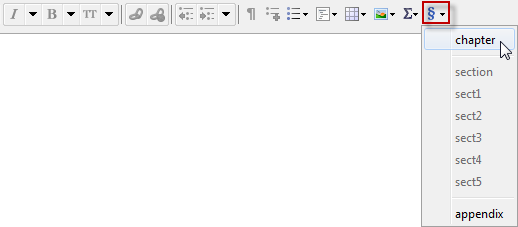
Compare this to what we
had to do in the
previous lesson in order to add such chapter using  EditInsert After.
Convenient keyboard shortcuts
The easiest way to add another paragraph after an existing one is to press Enter at the very end of the paragraph. In fact, Enter splits the paragraph at caret position. That's why if you press Enter at the very end of the paragraph, this creates a new, empty, paragraph.
A handy alternative is to press Ctrl-Enter while the caret is anywhere inside a paragraph.
Pressing Backspace at the very beginning of a paragraph works as expected: it joins this paragraph to the preceding one. And, of course, pressing Del at the very end of a paragraph joins this paragraph to the following one.
Note that Enter,
Backspace and Del work this way not only inside
paragraphs, but also inside list items and a few other kinds of
“block” (e.g. DocBook v5+ bridgehead element).
Pressing Enter inside a block invokes a specialized variant of
more general command  EditSplit.
Backspace and Del respectively at the beginning and at
the end of a paragraph invoke specialized variants of more general command
EditSplit.
Backspace and Del respectively at the beginning and at
the end of a paragraph invoke specialized variants of more general command
 EditJoin.
